Vacation Request Form
Choose what the form shows, enter the first and last day of leave and it counts the working days and your day back. Print it for signing.
Recent
Your last 10 settings, saved only in this browser. Nothing is uploaded.
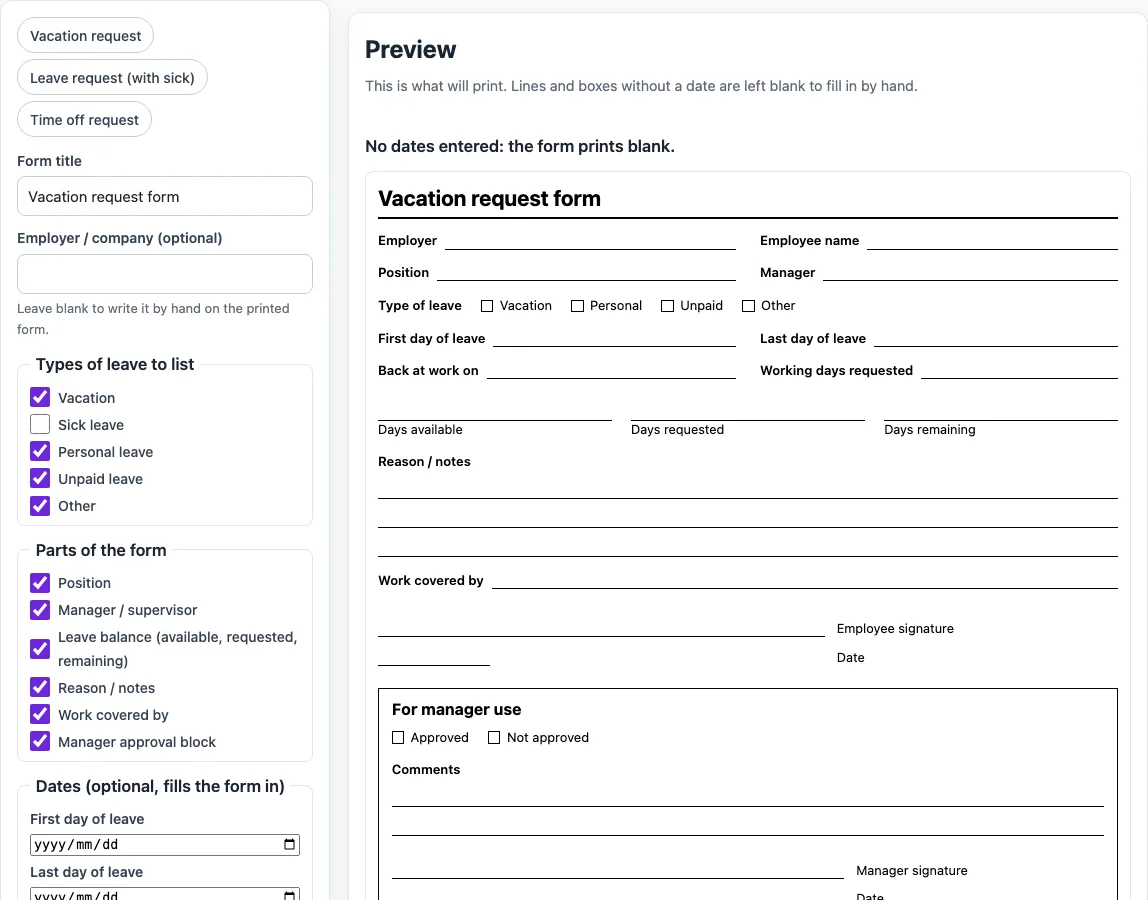
How to use the vacation request form tool
- Type a title in Form title (up to 80 characters), or pick a preset: Vacation request, Leave request (with sick) or Time off request. A blank title prints “Vacation request form”.
- Enter your company name in Employer / company (optional, up to 60 characters).
- Under Types of leave to list, tick the leave types to show: Vacation, Sick leave, Personal leave, Unpaid leave or Other.
- Under Parts of the form, tick the sections you need: Position, Manager / supervisor, Leave balance, Reason / notes, Work covered by and Manager approval block.
- Fill in First day of leave and Last day of leave.
- In the dates section, enter the number of Public holidays inside the period (a whole number from 0 to 60). Choose a Date style and tick the days you work under Your working days. Monday to Friday is ticked by default.
- Check the Working days requested and Back at work on lines that now appear on the form.
- Select Print form to open the print dialog, or Copy link to save your settings in the page address so you can reopen the same form later. Reset returns everything to the defaults.
Print form shows only the form, in portrait, on one page. Choose Save as PDF in the print dialog if you want a file instead of paper.
What should a vacation request form include?
A vacation request form should name the employee, the manager and the exact dates, so the manager can see what is being asked and when the person returns. This form includes Employer, Employee name, Position and Manager, a row of tick boxes for the Type of leave, First day of leave, Last day of leave and Back at work on. It also has Working days requested, three leave-balance lines (Days available, Days requested and Days remaining), Reason / notes lines and a Work covered by line. The employee signs and dates the request. A manager block with Approved and Not approved boxes, Comments lines and a manager signature and date completes it. You can hide any optional part under Parts of the form.
How many working days is my vacation?
Your working days are the days in your leave period that fall on days you work, minus any public holidays on those days. Start by counting calendar days: last day minus first day, plus 1, so both end days count. Then count only the days that match your ticked working weekdays, and subtract the holidays. The result is never below 0.
For example, 21 December 2026 to 4 January 2027 is 15 calendar days. With Monday to Friday as working days, that period has 11 weekdays. Subtracting 2 public holidays leaves 9 working days, and you are back at work on Tuesday 5 January 2027, the first ticked weekday after the last day of leave. A second example: Monday 12 to Friday 16 October 2026 is 5 calendar days and 5 working days, with you back on Monday 19 October 2026.
The tool does not look up holidays. You type how many fall on your working days. A period containing only a weekend gives 0 working days and a warning. The period can be up to 366 days long.
Is the form free and is anything uploaded?
Yes, the form is free to use. It runs in your browser, needs no account and uploads nothing to a server. The only thing the Copy link button adds is your settings, which are placed in the page address so the same form can be opened again.
Can I print it or save it as a PDF?
Yes. Select Print form to open your browser’s print dialog, which shows only the form, in portrait, on one page. In that dialog, choose Save as PDF to create a file. The leave-balance lines, the signature lines and the manager block are blank, so you can also complete the printed form by hand.
Worked examples
| Input | Result |
|---|---|
| 2026-12-21 to 2027-01-04, 2 holidays | 15 calendar days, 9 working days, back on 2027-01-05 |
| 2026-10-12 to 2026-10-16, 0 holidays | 5 calendar days, 5 working days, back on 2026-10-19 |
| No dates | Blank form |
Calculated by the tool above; open it with the same values to see each step.
Frequently asked questions
Is a leave request form the same as a vacation request form?
For most purposes, yes. This form serves both, and you can switch between them with the title box or the presets. Choose “Leave request (with sick)” if sick leave should be listed next to vacation.
Does the form tell me how many days of leave I am entitled to?
No. The tool does not know your entitlement, the notice you must give or whether your request will be approved. The leave-balance lines are blank for you to fill in, so check your employer’s leave policy for those figures.
Does a completed form mean my leave is approved?
No. The Approved and Not approved boxes, the comments and the manager signature are for your manager to complete. The form only records the request.
What happens if I leave both dates empty?
The form prints blank so you can fill in the dates by hand. If you enter both dates, the form prints the working days requested and the first working day back as well.
Can I use the form in my business or sell it?
Yes. Everything you make here is royalty-free for personal, classroom and commercial use, including printables you sell on Etsy or in a KDP book. No credit is required. The only thing you may not do is copy the form generator or the site itself to run a competing service; see the terms.
Related tools
- Employee availability form: print a blank form for staff to say which days and hours they can work.
- Employee schedule template: list your employees and roles and assign a shift to each day.
- Monthly work schedule template: plan a full month of shifts, with hours per person worked out for you.
- Staff roster template: plan a roster for a week, a fortnight or a month and print it.
- Shift schedule template: define your shifts and their times, assign them to staff and see the hours and cover.
- Rota template: build a staff rota for the week with early, late and night shifts.