Attendance Tracker
Pick the month, mark each day with one click and read every person's days and attendance rate. Print the sheet or download it as a CSV file.
Recent
Your last 10 settings, saved only in this browser. Nothing is uploaded.
The attendance tracker is a free month grid for recording who was present, absent, late, sick, on vacation or on holiday on each day. Each row is one person and each column is one day of the month you choose. It runs in your browser, needs no account, and uploads nothing. The page opens on a sample sheet for October 2026 so you can see how the marks and rates work; replace the names and marks with your own.
Use it as an employee attendance calendar for a team or a small group of staff. You pick the month and the working days, mark each day with a single letter, and the grid works out how many days each person attended and an attendance rate.
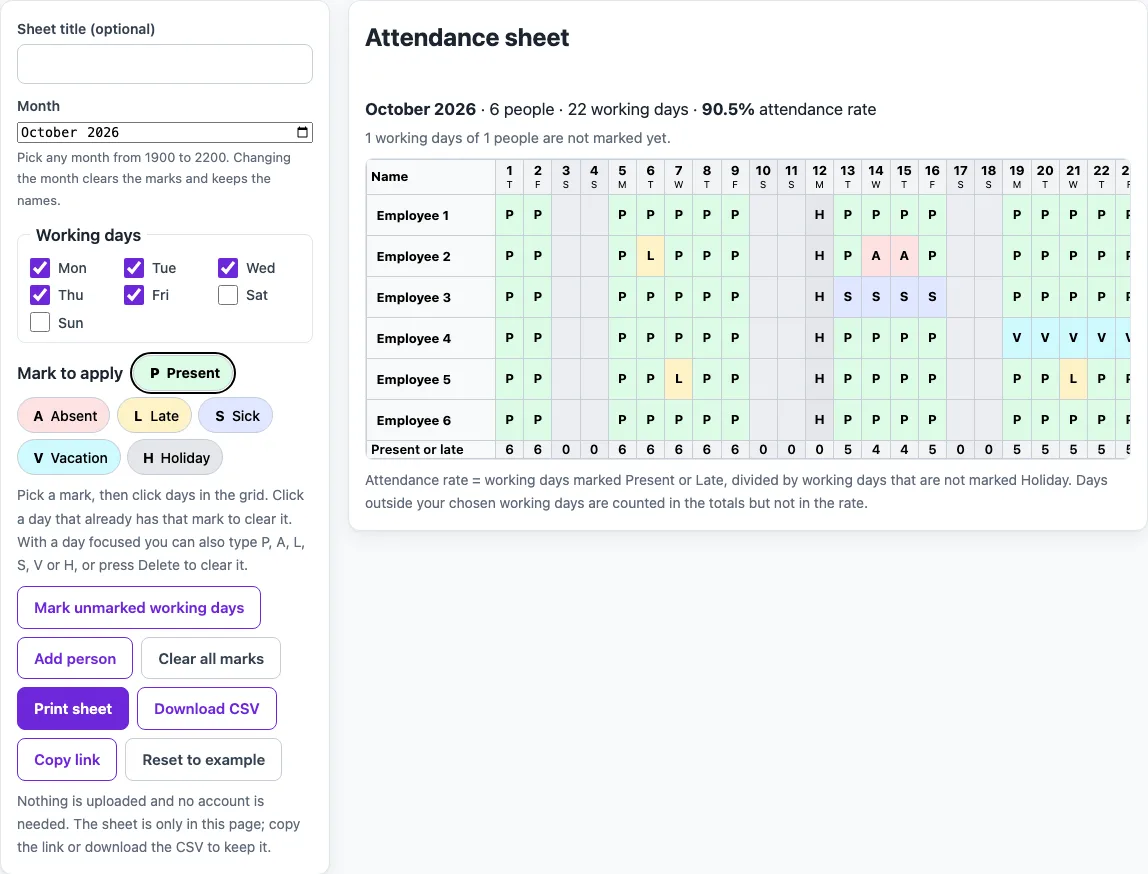
How to use the attendance tracker
- Type a title in the Sheet title box if you want one. It is optional and can be up to 80 characters.
- Choose the month with the Month picker. Changing the month clears the marks and keeps the names.
- Tick the Working days you use. Monday to Friday are ticked by default, and at least one day must stay ticked.
- Type each person’s name into the name column. Click Add person to add a row. You can have up to 40 people.
- Under Mark to apply, choose a mark. Present is selected at first.
- Click a day cell to apply the selected mark. Click a cell that already holds that mark to clear it.
- Click Mark unmarked working days to fill every empty working day with the selected mark. If Late is selected, Present is applied instead.
- Check the note above the grid, which shows how many working days are still not marked.
With a cell focused, you can type P, A, L, S, V or H to mark it. Press Delete or Backspace to clear it, and use the arrow keys to move between cells. The x button at the end of a row removes that person, but the last row cannot be removed. Reset to example loads the sample sheet, and Clear all marks empties the grid. Print sheet, Download CSV and Copy link are described in the FAQ below.
How is the attendance rate worked out?
The attendance rate is the number of working days marked Present or Late, divided by the number of working days not marked Holiday, shown as a percentage with one decimal place. A Late day counts as attended, while Sick, Vacation and Absent days count as not attended in the rate.
Here is the sample sheet for October 2026, with Monday to Friday as working days. That gives 22 working days. Everyone is marked Holiday on 12 October, so 21 days are scheduled. Employee 2 has 18 Present, 1 Late and 2 Absent, which is 19 attended days out of 21, or 90.5%. Employee 3 is sick on 4 days, which gives 17 out of 21, or 81%. Across everyone, 114 attended days out of 126 scheduled days gives 90.5%.
Two rules affect the result. A day with no mark counts as not attended, so mark every working day before you read the rate. A day outside the working days you ticked, such as a Saturday shift, is counted under its mark in the totals but not in the rate. If every working day for a person is Holiday, nothing is scheduled and the rate shows a dash.
What do the marks P, A, L, S, V and H mean?
The six marks are P for Present, A for Absent, L for Late, S for Sick, V for Vacation and H for Holiday. A day with no mark is called “not marked”, and the rate treats it as not attended.
Present and Late count as attended days in the rate. Absent, Sick and Vacation count as not attended, but each has its own column in the row totals, so you can see the reason. Holiday days are left out of the rate altogether, because they are not scheduled.
The tool only counts what you mark. It does not decide what attendance level is acceptable, and it does not say what an employer, school or law requires.
Worked examples
| Input | Result |
|---|---|
| October 2026, 6 people, 22 working days | 114 days attended, rate 90.5% |
| February 2028, 6 people, 21 working days | 70 days attended, rate 55.6% |
Calculated by the tool above; open it with the same values to see each step.
Frequently asked questions
Is the attendance tracker free and is anything uploaded?
Yes, it is free and needs no account. It runs in your browser and uploads nothing. Nothing is stored on a server.
Can I print the attendance sheet or keep it for later?
Click Print sheet to open the browser print dialog. The grid prints in landscape, with marks shown as letters and a key below the grid. Choose Save as PDF in that dialog to keep a file. To keep the data as a spreadsheet, click Download CSV. The file has one line per person with the marks for each date, the count of each mark and the rate, and it opens in Excel or Google Sheets.
How do I track attendance for a month?
Set the month and tick your working days first, then add everyone’s name. Mark days as they happen, or use Mark unmarked working days to fill the blanks with Present and change the exceptions afterwards. Keep an eye on the note above the grid until no working days are left unmarked, then read the rates.
What does the “Present or late” row show?
The bottom row counts how many people were present or late on each day. It shows how many people were in on a given day, which is useful for checking cover.
Can I save my sheet and open it again later?
Click Copy link. The whole sheet, including the title, month, working days, names and marks, goes into the address of the page, so opening that link shows the same sheet. The link gets long when you have many people, so keep it somewhere safe if you want to come back to it.
Related tools
- Employee schedule template: Plan who works which days, rather than record what happened.
- Monthly work schedule template: Plan a full month of shifts, with hours per person worked out for you.
- Employee availability form: Print a blank form for staff to say which days and hours they can work.
- Staff roster template: Plan a roster for a week, a fortnight or a month and print it.
- Shift schedule template: Define your shifts and their times, assign them to staff and see the hours and cover.
- Rota template: Build a staff rota for the week with early, late and night shifts.