Weekly Work Schedule Template
Fill in who works which shift each day of the week, see hours per person and staff per day, and print the schedule.
Recent
Your last 10 settings, saved only in this browser. Nothing is uploaded.
A weekly work schedule template is a grid with one row per person and one column per day, where each cell holds a shift code such as S1, S2 or O. Weekly Work Schedule Template is a free, editable, printable version of that grid that runs in your browser, with no account or sign-up needed.
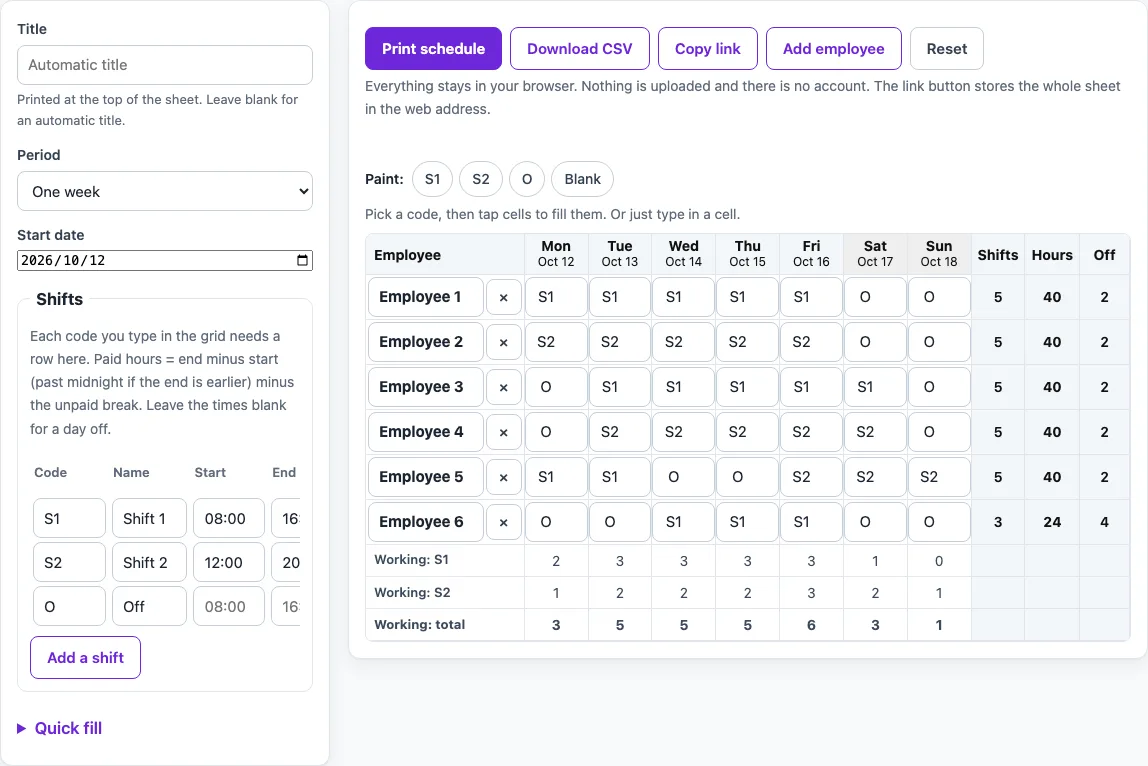
Each person’s row shows their number of shifts, their paid hours and their days off. A count row at the bottom shows how many people work each shift code on each day. The default sheet is a worked example with six people from October 5 to 11, 2026. It adds up to 224 paid hours across 28 shifts. Replace the names, codes and title with your own, and the sheet works out the totals from the times and codes you enter.
How to use the Weekly Work Schedule Template
- Type a title in the title field. Until you do, the title reads “Weekly work schedule, Oct 5, 2026 – Oct 11, 2026”.
- Choose a period: one week (7 days), two weeks (14 days) or a month. Week-like periods start on the date you pick.
- Replace the example names in the row labels with the names of your team.
- Click a cell and type a shift code such as S1, S2 or O. Codes are not case sensitive and can be up to 12 characters long.
- Read each row’s shifts, paid hours and days off. Use the count row at the bottom to see how many people work each shift on each day.
- Check the warnings. The page flags overlapping worked shifts, unreadable times and codes defined twice.
- Open Quick fill to repeat a pattern such as “S1 S1 S1 S1 S1 O O” along one row or every row, copy the first week onto the following weeks, or clear cells. To paint cells, tap a code chip and then tap the cells.
- When the sheet is ready, use Print schedule, Download CSV or Copy link.
Print schedule prints only the sheet, in landscape, with large cells and a repeated header row. Copy link stores the whole sheet in the web address, so the same schedule reopens later or can be sent to someone else. Reset returns to the example sheet, so save your work first if you want to keep it.
How are paid hours calculated on a weekly work schedule?
Paid hours for a shift equal the end time minus the start time, minus the unpaid break in minutes. The result never goes below zero. Take the default S1 shift: 08:00 to 16:30 is 8 hours 30 minutes, or 510 minutes. Subtract the 30-minute unpaid break to get 480 minutes, which is 8 paid hours. If the end time is earlier than the start time, the shift runs past midnight. For example, 22:00 to 06:00 is 480 minutes, and with a 30-minute break it gives 7 hours 30 minutes. The tool only does this plain time arithmetic and applies no legal or pay rules, so check any rules that apply to you separately.
What do the shift codes S1, S2 and O mean?
Shift codes are short labels in the cells that match entries in the shift table. In the default example, S1 (Shift 1) runs 08:00 to 16:30 with a 30-minute unpaid break, which gives 8 paid hours. S2 (Shift 2) runs 12:00 to 20:30 with the same break, also 8 paid hours. O (Off) has no times, so it marks a day without work and counts 0 hours. Blank cells and codes with no times also count as days off.
How do the totals in a weekly schedule add up?
A row’s paid hours are the sum of its worked shifts, and the sheet total is the sum of every row. In the default example, the first five people each work 5 shifts of 8 hours, so 40 hours each. The sixth person works 3 shifts, so 24 hours. Five rows at 40 hours plus one at 24 hours gives 224 hours. The 28 shifts at 8 hours each also give 224. A 14-day view of the same example still shows 224 hours and 28 shifts. Days off are the days without a worked shift, so the first five rows have 2 days off each and the last row has 4.
Why does the start date matter in a weekly schedule?
A week-like period starts on the date you pick. When you arrive without a saved link, the page opens on the Monday of the current week. One week shows 7 days and two weeks show 14 days, which is a fortnight. A month always shows the whole calendar month, including 29 days in a leap-year February. Set the start date before you fill in the codes so the columns match the dates you need.
How do I fill in the cells quickly?
Click a cell and type a code, or use the arrow keys and Enter to move from cell to cell; the code list offers the codes defined in the shift table. On a phone, tap a code chip and then tap the cells to paint them. Quick fill repeats a pattern such as “D D N N O O O” along a row, optionally starting each row one step later, and can copy the first week onto the following weeks. A dash in the pattern leaves a cell blank.
What is in the CSV file?
Download CSV saves the grid with one row per person: the name, the codes for each date, and the totals. The header row uses dates in yyyy-mm-dd form. The file opens in any spreadsheet program. Nothing is sent anywhere; the file is made in your browser.
How does the staffing count work?
The count row at the bottom shows, for each date, how many people have each code. Use it to see at a glance whether a day has enough people on a shift. The page does not decide what is enough: you read the counts and judge for yourself.
Worked examples
| Input | Result |
|---|---|
| 6 rows, 7 days, Oct 5, 2026 – Oct 11, 2026 | 224 paid hours in total, 28 shifts |
| 6 rows, 14 days, Oct 5, 2026 – Oct 18, 2026 | 224 paid hours in total, 28 shifts |
Calculated by the tool above; open it with the same values to see each step.
Frequently asked questions
What happens if I type a code that is not in the shift table?
The cell turns red, counts as 0 hours, and the code is listed in a warning. Check the spelling against the shift table.
Why does the page warn about overlapping shifts?
It warns when two worked shifts in a row overlap, such as a night shift that ends after the next day’s shift starts. Check the times in those cells and correct them if the overlap is not intended.
Can I make a schedule for two weeks?
Yes. Choose the two-week option, which gives 14 days from the start date you pick. The two-week worked example also shows 224 paid hours across 28 shifts.
Can I copy the first week onto later weeks?
Yes. Quick fill can copy the first week onto the following weeks, so you only need to build one week from scratch.
What do I lose if I press Reset?
Reset returns the page to the example sheet, so the changes you have typed are replaced. Use Copy link or Download CSV first if you want to keep them.
Is this tool free, and is anything I type uploaded?
Yes, it is free and needs no account or sign-up. Everything is calculated in your browser, and nothing you type is uploaded.
Can I print it or share it?
Yes. Print / save as PDF prints the page as you see it; choose Save as PDF in the print dialog to keep a file. Copy link copies a page address that stores your inputs, so the same schedule can be reopened later or sent to someone else.
Related tools
- Monthly Work Schedule Template: plan a whole month of shifts and see hours per person.
- Employee Schedule Template: a schedule with roles and an hours target for each person.
- Shift Schedule Template: define shifts and times, then assign them to staff.
- Work Schedule Maker: build a schedule with auto-fill patterns and copy last week.
- Rota Template: a weekly or two-week staff rota.
- Staff Roster Template: a weekly, fortnightly or monthly staff roster.
- Restaurant Work Schedule Template: a weekly schedule for servers, cooks and hosts.
- Nurse Shift Schedule: 12-hour day and night shifts for four weeks.